


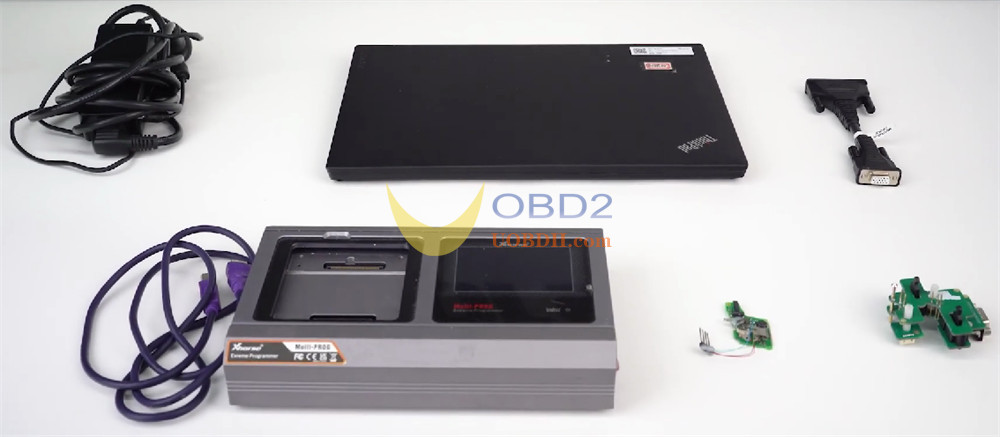
Today, we’re walking you through the complete process of reading VW 5C 5D key data and generating a dealer key using Xhorse Multi–Prog. This method works with both original keys and VVDI keys, but in this guide, we’ll be demonstrating using an original key.
You have two flexible options: soldering connection or solder‑free adapter.
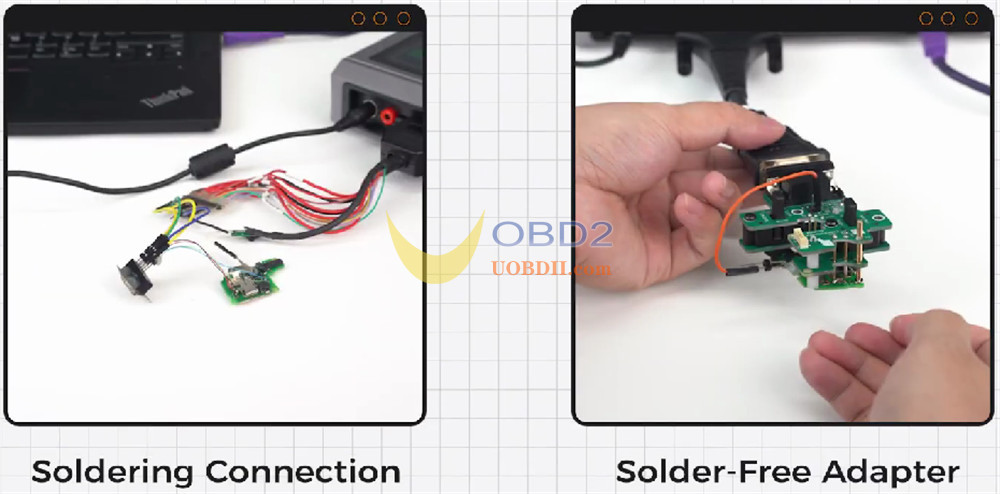
Method 1: Soldering Connection
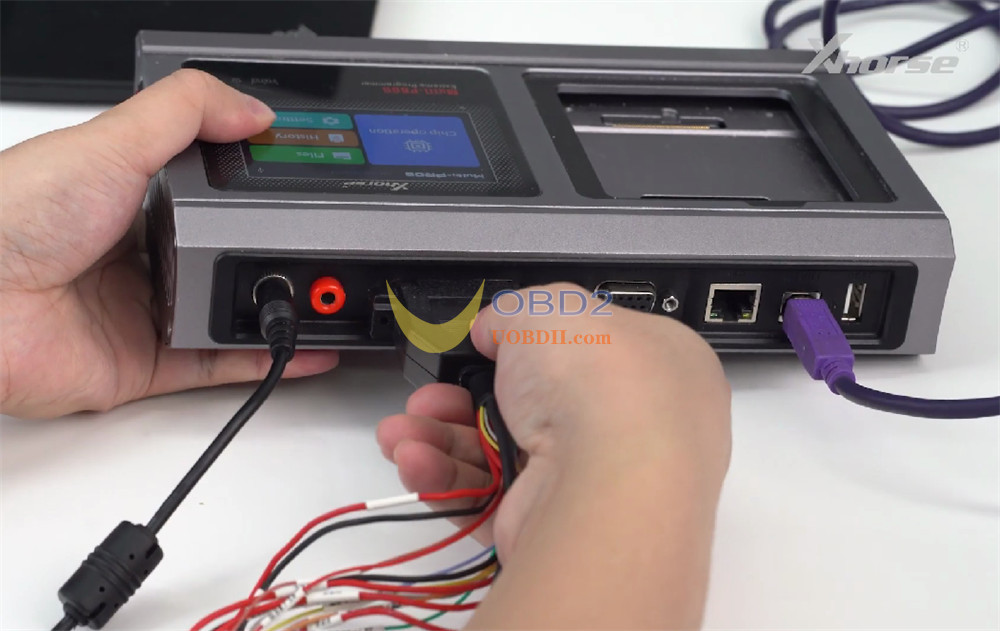
Connect Multi-Prog Programmer to your computer and launch Multi Prog software.
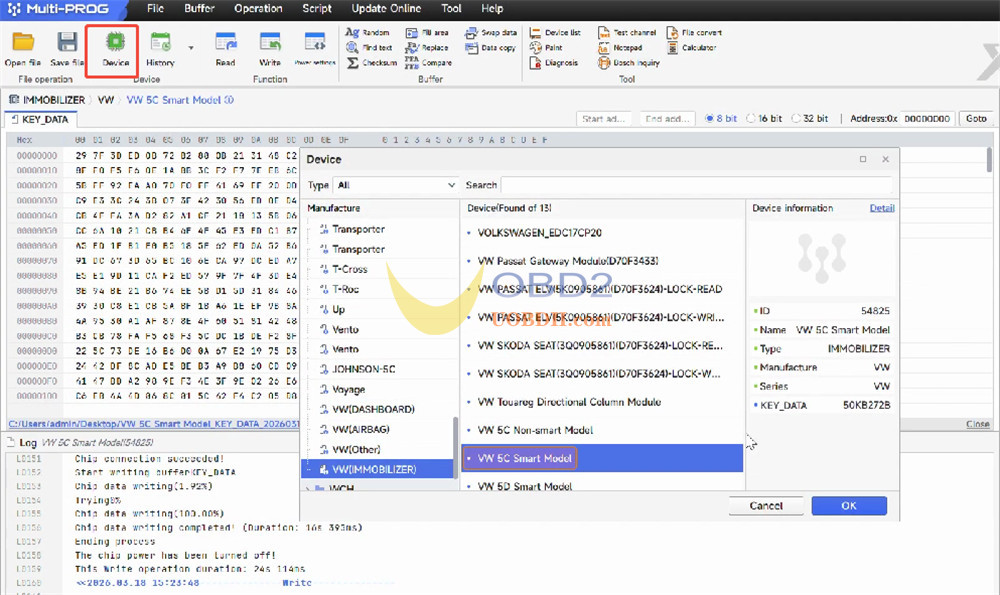
Click on [Device] and locate the [VW 5C Smart Model].
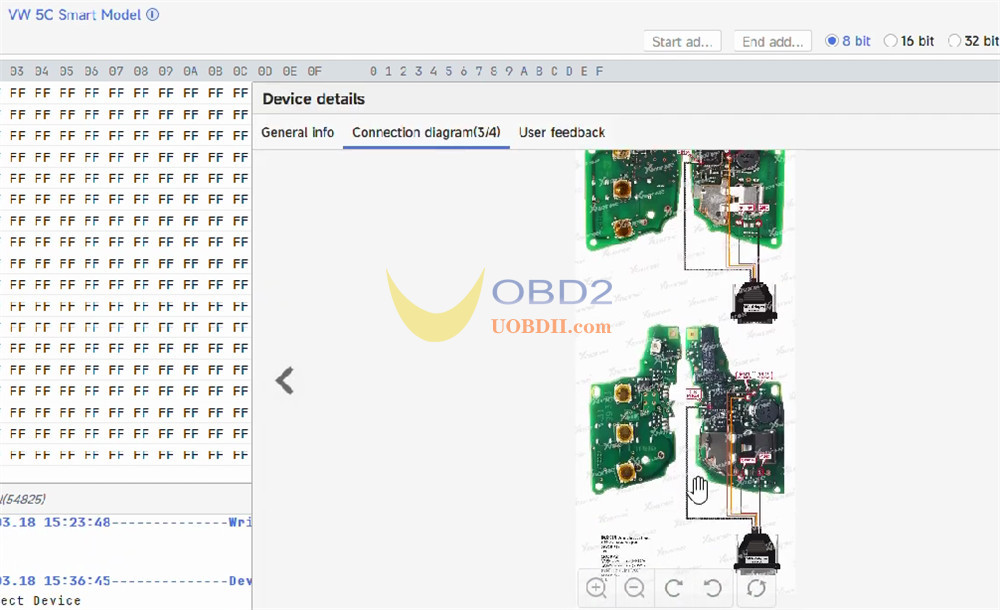
Open the connection diagram and follow it carefully.
Solder the original key to the MCU cable according to the diagram.
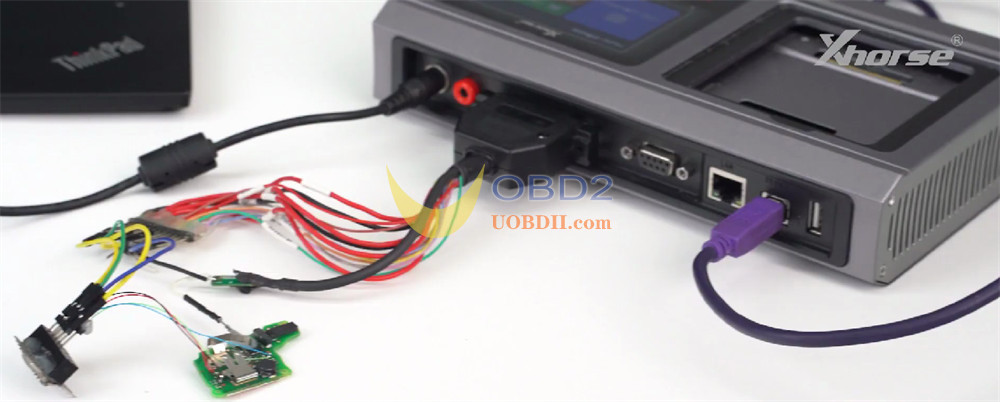
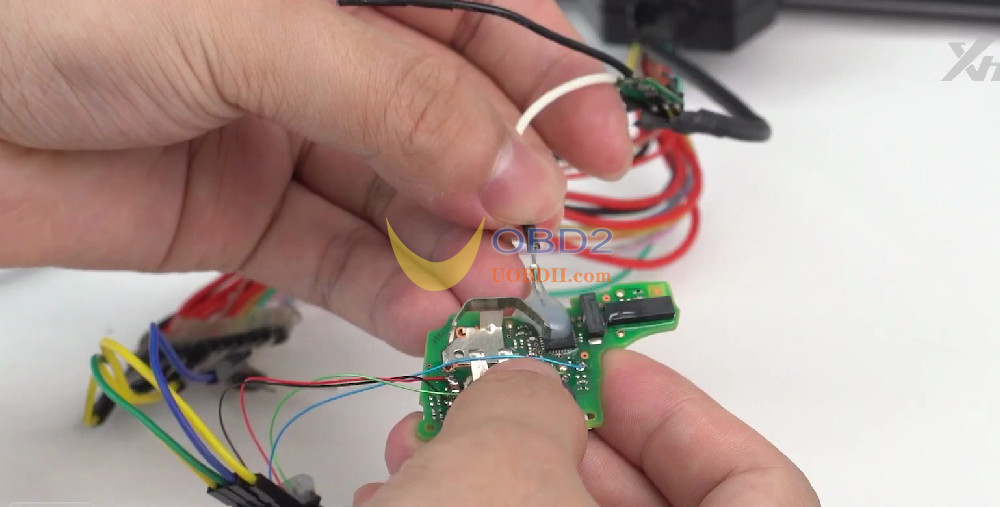
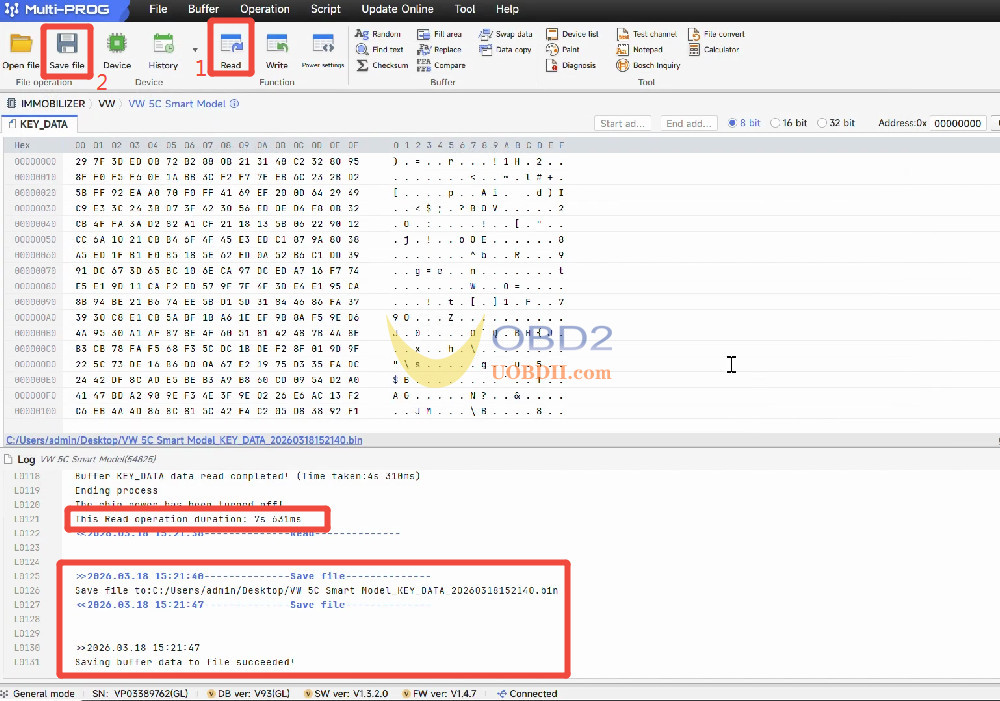
Once connected, click [Read] to read the original key data.
After a successful read, click [Save File] and store the data on your computer.
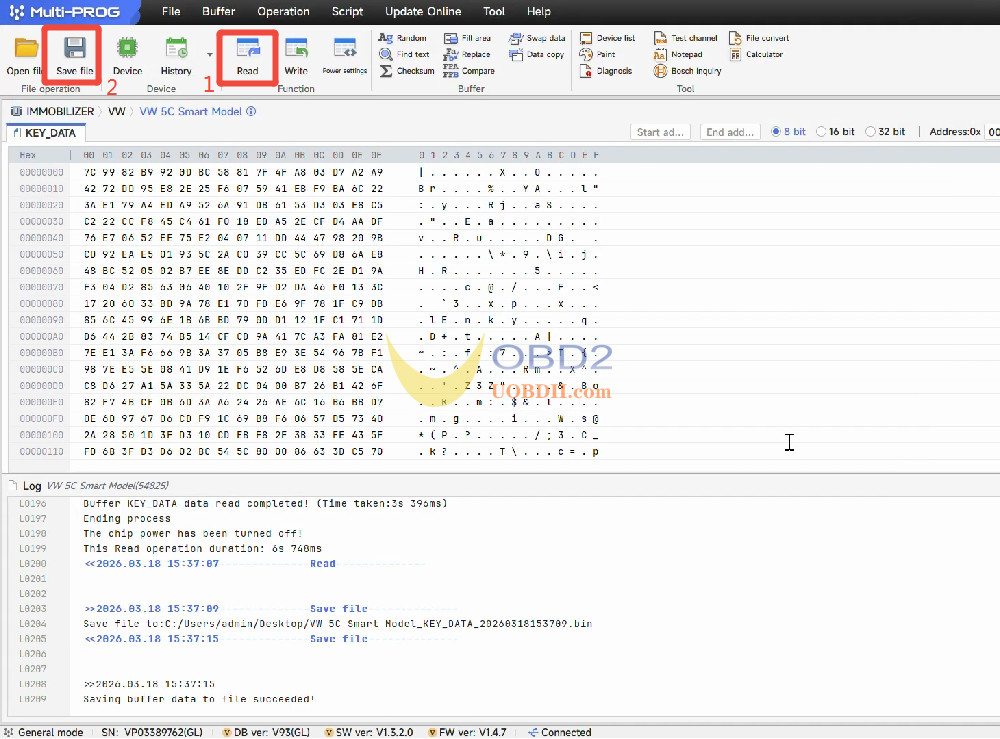
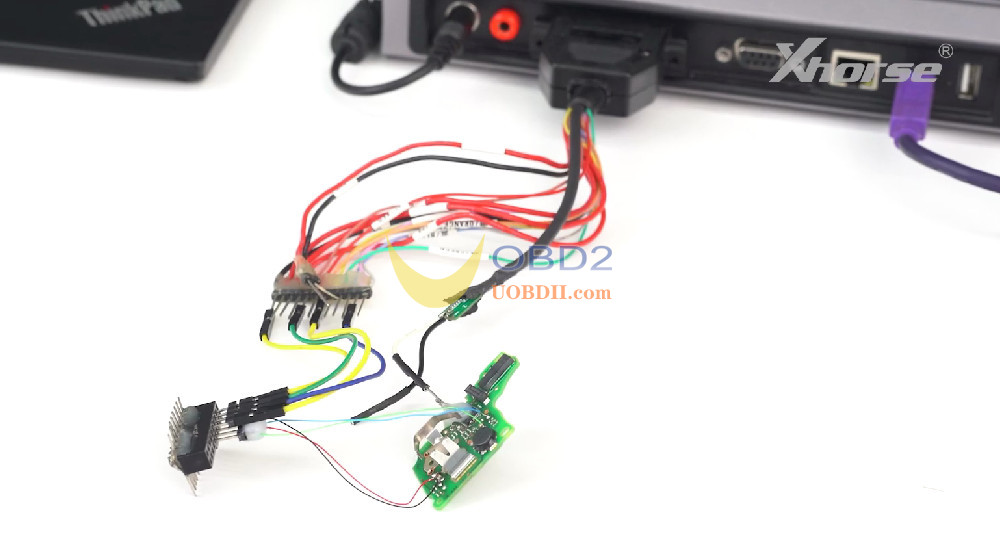
Remove the original key and solder the new original key (the one you want to generate) to the corresponding points on the harness.
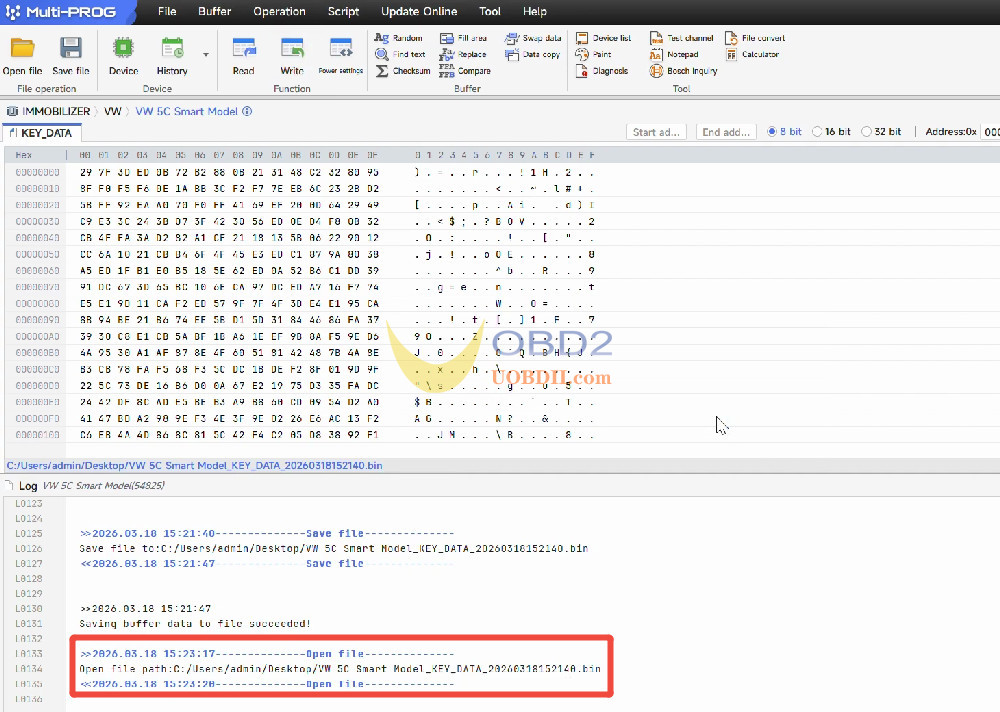
Click [Open File], load the previously saved data file.
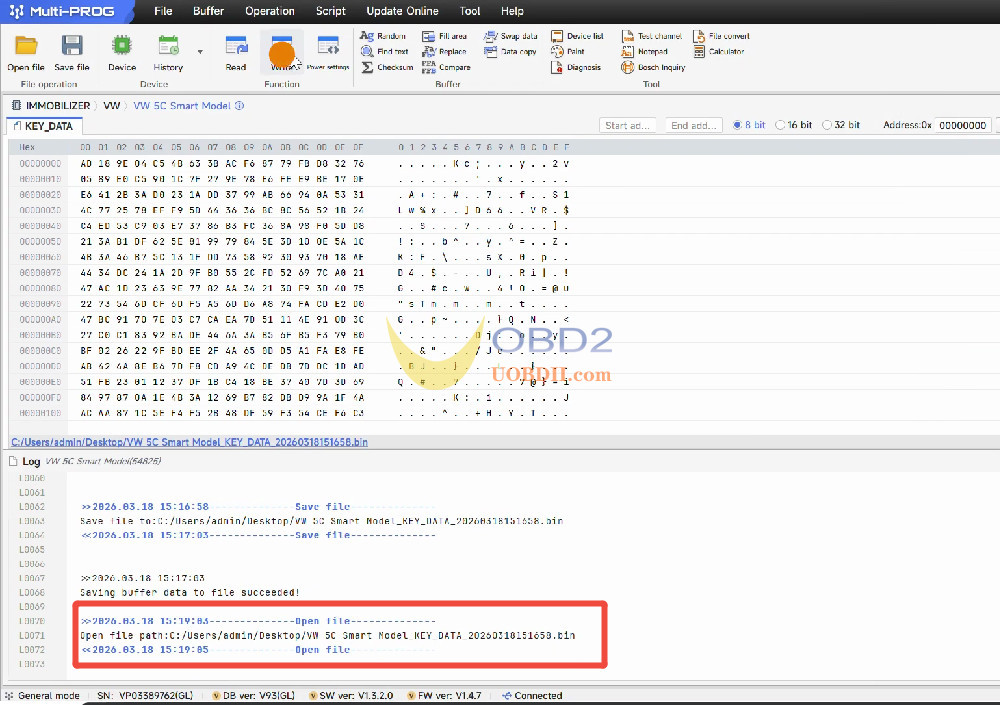
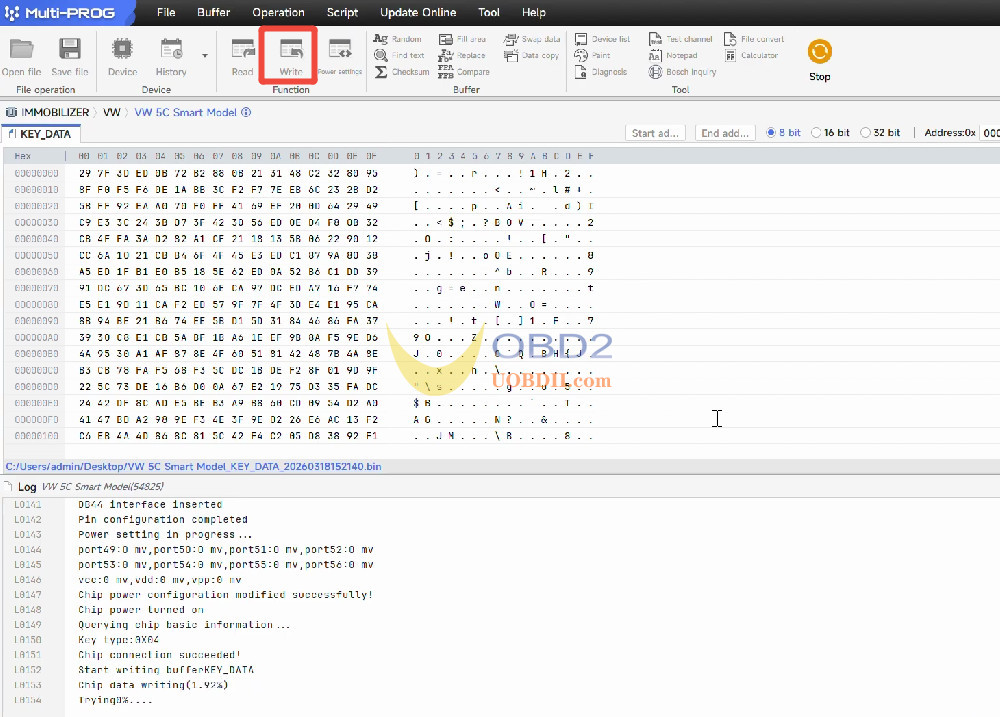
Click [Write].
Once completed, the new key is successfully generated as a dealer key.
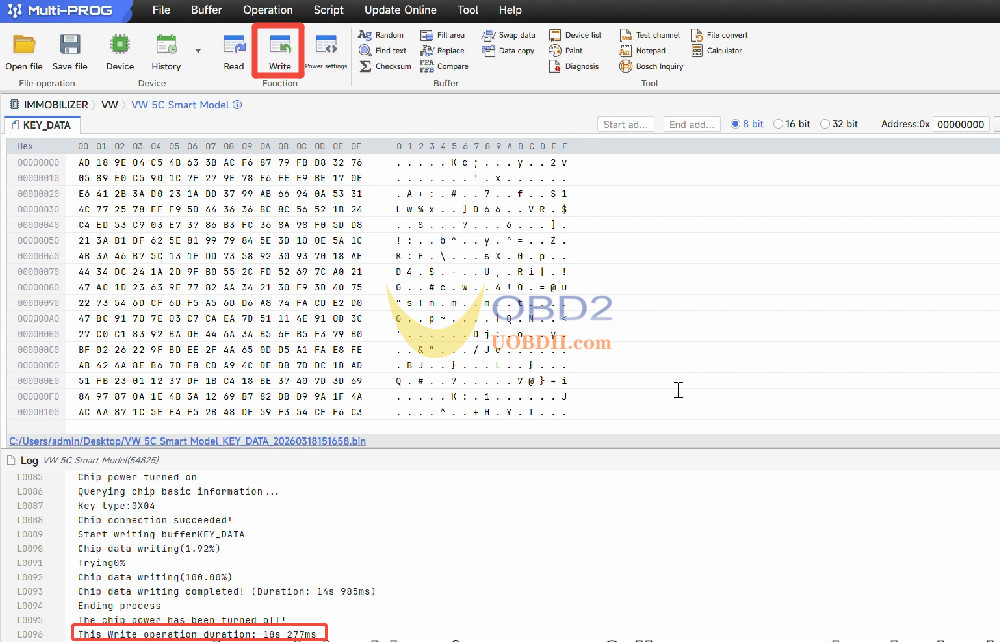
Method 2: Solder‑Free Adapter
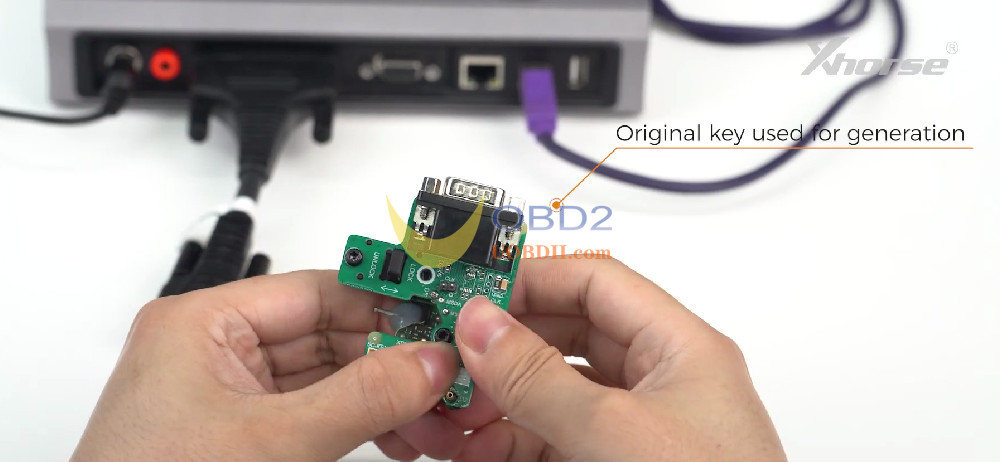
Clamp the original key onto Xhorse MQB 5C 5D Solder‑free Adapter.
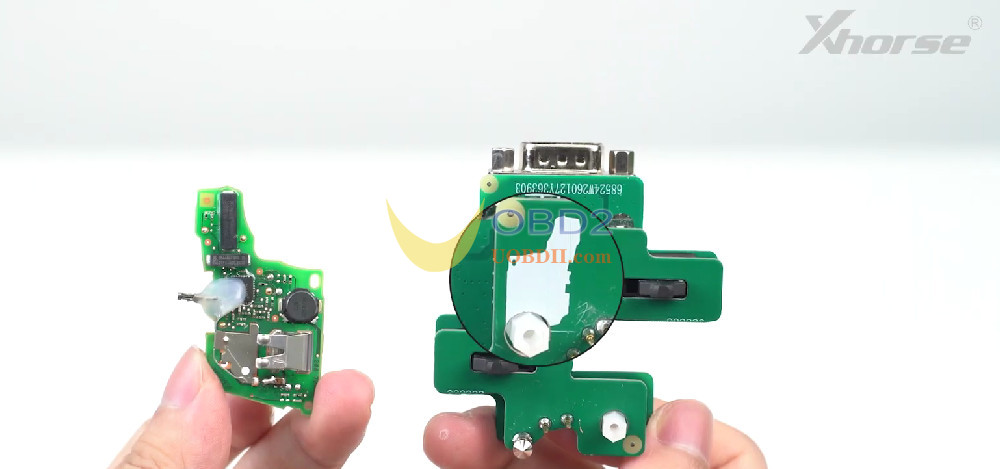
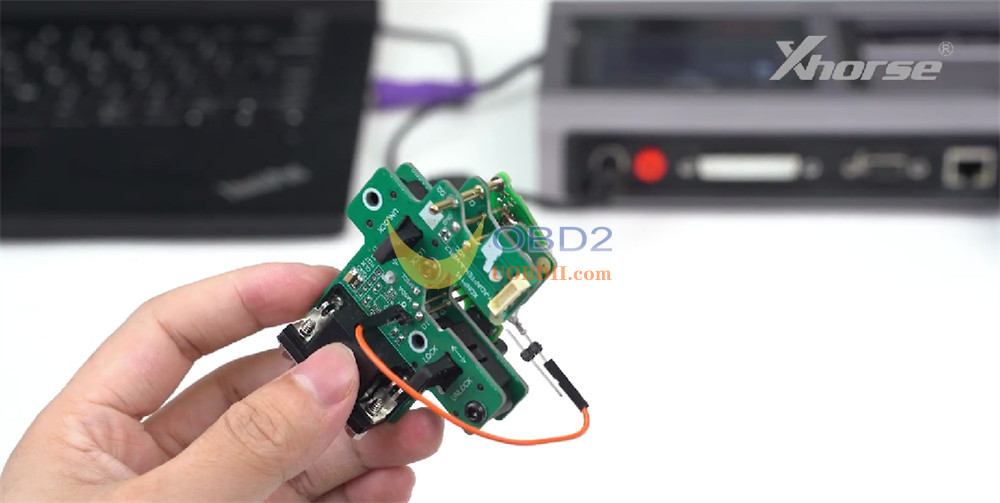
Connect the MCU cable to Multi Prog.
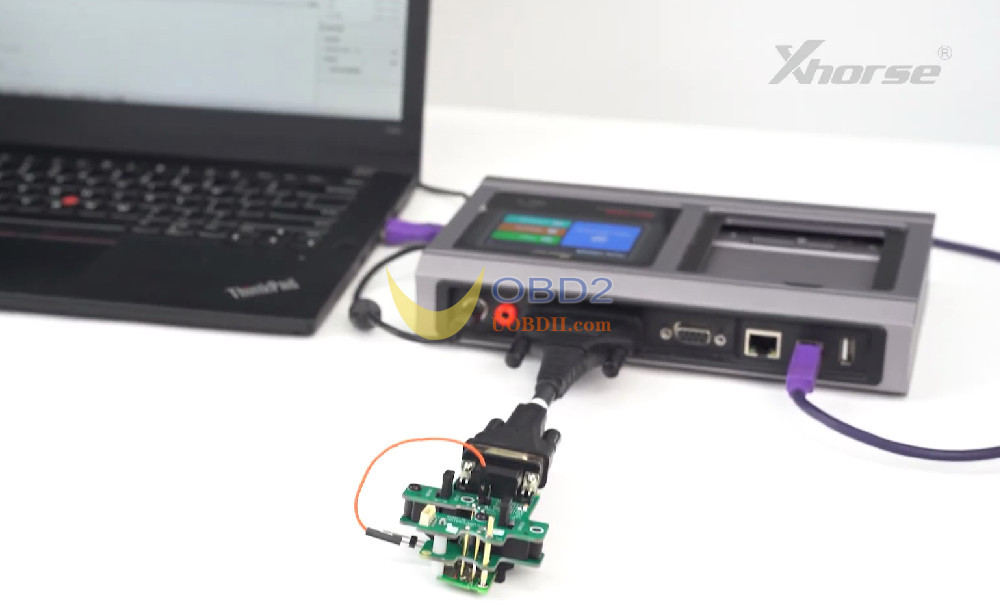
Click [Read].
After a successful read, click [Save File] to store the data file to your computer.
Remove the original key from the adapter.
Clamp the new original key onto the adapter.
Click [Open File] and load the previously saved data file.
Click [Write].
Once writing is complete, the new key is now successfully generated as a dealer key.
What’s Next?
Now that the dealer key has been generated, you can proceed to the vehicle for key learning. For this step, you will need one of the following tools:
Final Thoughts
That’s the complete workflow for generating a VW 5C 5D dealer key using an original key with Xhorse Multi–Prog ECU Programmer. Whether you prefer soldering or the solder‑free adapter, both methods are reliable and effective.
Video Guide:
