
The HUIDAO CK app is designed to work with the CK-OBDProg device, allowing users to connect their smartphones to the vehicle’s OBD diagnostic system. Before using the device, you need to download the official app, grant the necessary permissions, and follow the correct connection procedure.
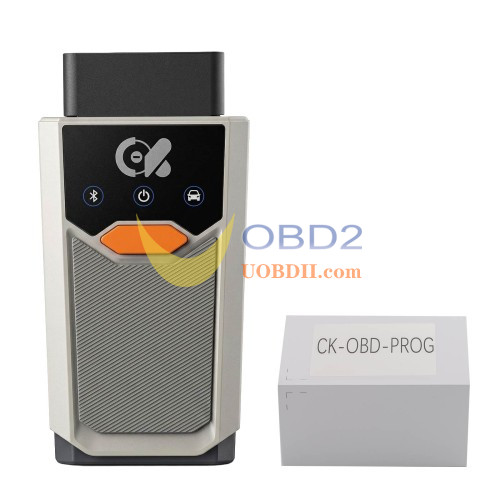
This guide explains how to download and install the HUIDAO CK app, configure phone permissions, and connect the CK-OBDProg to your vehicle.
1. Download and Install the HUIDAO CK App
HUIDAO CK is distributed through official channels. Always download the application from the recommended source to ensure safe installation and proper functionality.
Android:
- Search for HUIDAO CK in an app marketplace.
- Alternatively, scan the QR code on the product packaging.
- System requirement: Android 8.0 or later.
iOS:
- Search for HUIDAO CK in the Apple App Store.
- Download and install the official application.
- System requirement: iOS 13.0 or later.
Once installation is complete, open the app and follow the on-screen instructions. After a successful connection, the application automatically switches to the OBD operation screen.
If you want to use a different phone, simply reconnect the same device to the new smartphone.
2. Grant the Required App Permissions
For proper device detection and communication, HUIDAO CK requires several permissions. Make sure to enable them in your phone’s system settings.
- Bluetooth: Required to discover and connect to the CK-OBDProg device.
- Location (Android): Android requires location permission to scan for Bluetooth devices. This permission is related to Bluetooth scanning, not location tracking. You can select “While using the app.”
- Storage: Allows the application to save backup files and operation logs.
- Notifications: Used to display firmware update prompts and operation results.
Granting these permissions helps ensure stable communication between your smartphone and the diagnostic device.
3. CK-OBDProg Connection Steps
Follow the steps below in the correct order. Check the device indicators and app status before proceeding.
Step 1: Turn on the vehicle ignition
Turn the ignition to the ON position and confirm that the instrument panel lights up. Do not start the engine.
Locate the vehicle’s OBD diagnostic socket, usually found underneath the dashboard near the driver’s seat.
Step 2: Connect the CK-OBDProg
Plug the CK-OBDProg device directly into the vehicle’s OBD diagnostic socket.
Check the device’s power indicator and confirm that it remains steadily illuminated. This indicates that the device is receiving power from the vehicle.
Step 3: Turn on the phone Bluetooth and open HUIDAO CK . The home screen shows theconnection status at the top; tap the ⊕ icon in the upper-left corner to open thedevice search page
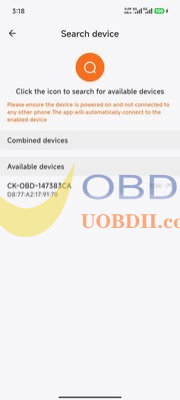
Step 4: On the search page tap the orange round icon to start scanning. Makesure the device is powered on and not connected to another phone; the appconnects to an enabled device automatically
Step 5: Under “Available devices” tap the entry whose name starts with CK-OBD – (forexample CK-OBD-147383CA, suffixed with the machine number) to connect
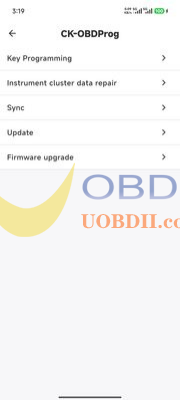
Step 6: After a successful connection the Bluetooth indicator becomes steady and thehome screen shows “Connected”. Tap the CK-OBDProg card on the home screento open the device function menu with five entries: KeyProgramming, Instrument cluster data repair, Sync, Update and Firmwareupgrade
First Use: Complete Three Initialisation Steps
The device ships with the firmware and resource packages that were current at thetime of manufacture . Nothing is updated automatically when the app is installed, soa new device must be initialised by hand before its first job . Skipping these stepsusually shows up as models missing from the vehicle database, failed keyprogramming, or read and write errors on the instrument cluster.
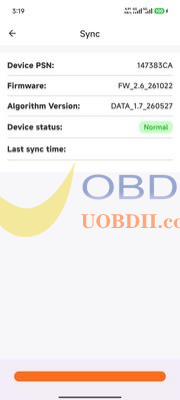
- Sync the device information. Connect the device, open “Sync” and tap the”Sync” button at the bottom . Confirm that the Device PSN, firmware version,algorithm version and device status are all displayed . Once the sync completes,the app records the device PSN and version information for later reference .
- Update the firmware. Return to the device function menu and open “Firmwareupgrade”. Compare the latest version shown on the page with the installedversion . If a newer version is available, tap “Start upgrade”, then leave the devicepowered and the app in the foreground until the progress bar completes (about 2to 5 minutes). The firmware and the algorithm are versioned separately, so checkboth and bring both up to date .
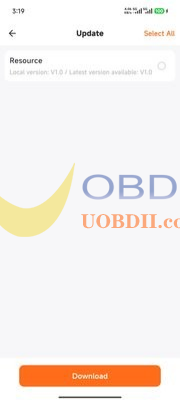
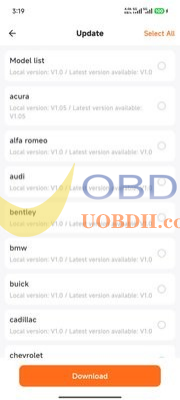
- Update the software and resources. Open “Update” and work through all threecategories: “Resource files”, “Key Programming” and “Instrument cluster datarepair”. In each one, tap “Select all” in the upper-right corner and then”Download” at the bottom.The first update is large, so run it over Wi-Fi .
Complete all three steps before the first job . Out-of-date firmware leaves the app and thedevice on mismatched versions, which shows up as repeated disconnections; stale resourcesleave newer models missing from the vehicle database .
Sections 3.5 and 3.6 below describe the screens and fields of each step in detail .
3.5 Device Sync and Firmware Update
Tap “Sync” in the device function menu to view the Device PSN (machine number),firmware version, algorithm version and device status, then tap the “Sync” button at the bottom to sync the device information to the app. If the device statusis abnormal, reconnect the device before syncing .
Tap “Firmware upgrade” to open the upgrade page . The app shows the latest andinstalled versions of both the firmware and the algorithm. When a newversion is available, tap “Start upgrade”; the progress bar appears at the bottom . Theupdate takes about 2 to 5 minutes . Throughout the update the device must staypowered: do not disconnect power, close the app or send it to the background . Aninterrupted update may place the device in recovery mode, in which case power-cycleit and retry following the app prompts .
3.6 Data and Resource Updates
Keep the vehicle database and algorithm resources up to date, otherwise newermodels cannot be programmed . Tap “Update” in the device function menu; theupdates come in three categories: Resource files (common resources),Key Programming (immobiliser data per brand) and Instrument cluster datarepair (instrument data per brand).
Inside any category the entries are listed by brand, each showing thelocal and the latest version . Tick individual entries or tap “Select all” in the upperright corner, then tap “Download” at the bottom . Update the resources for the brandsyou work on before every job.
Learn more: https://www.uobdii.com/wholesale/ck-obd-prog.html
