
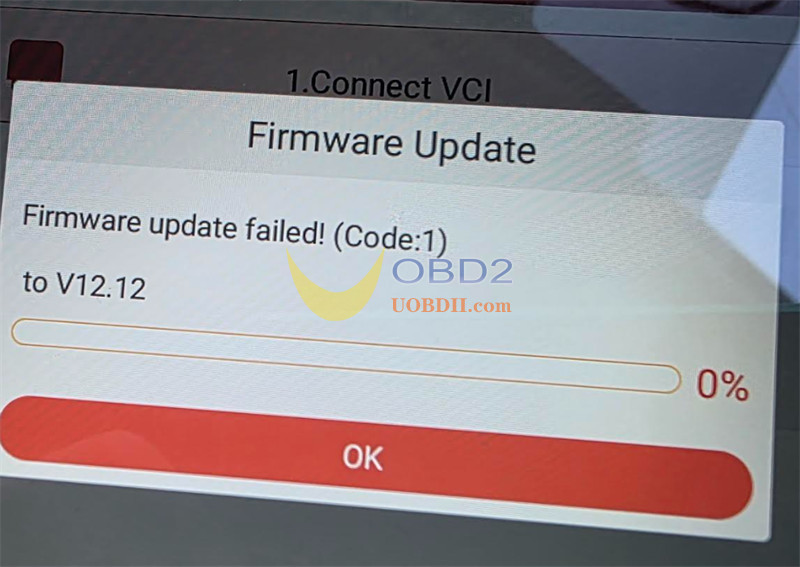
One customer gave feedback that when he tried to update his Launch CRP909e firmware to V12.12, the device showed the error code “Firmware update failed (Code: 1)”.
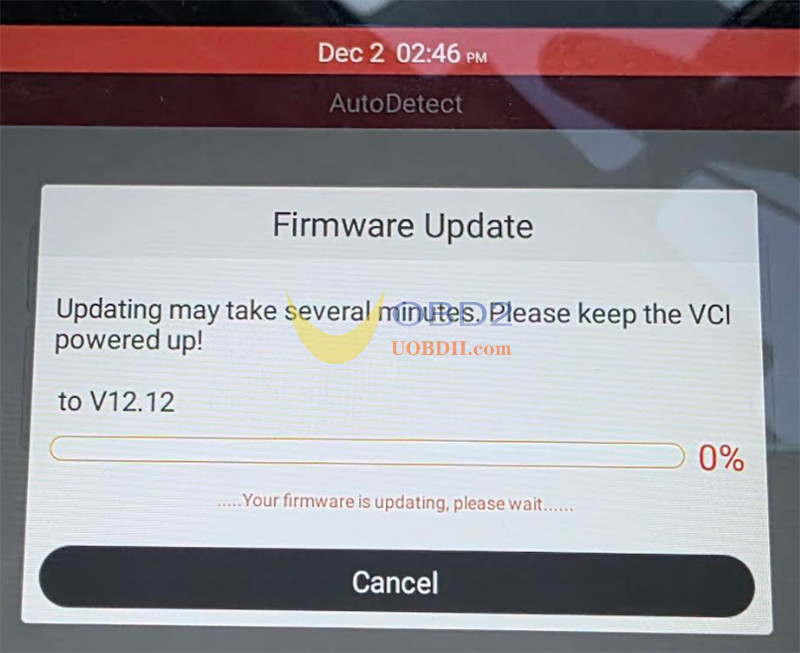
The solution:
If you encounter the same issue with CRP909 series, CRP919 series (CRP919E/CRP919X, CRP919XBT/EBT), CRP123X/E, or similar Launch tools running the latest firmware V12.12, please follow the steps below to resolve it.
Step 1: Re‑download Firmware
Ensure your Launch Creader series tablet is connected to a stable network.
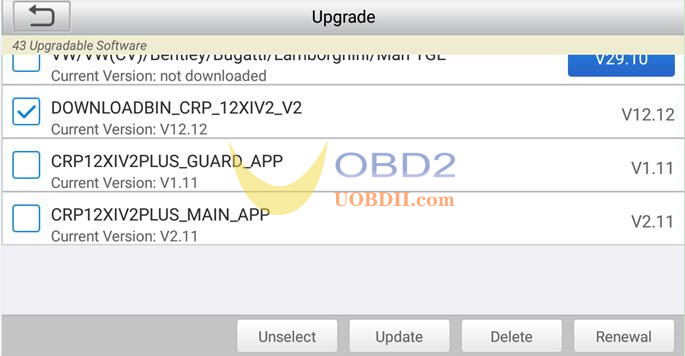
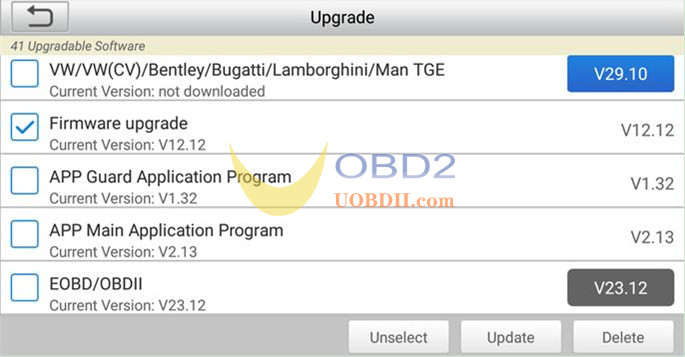
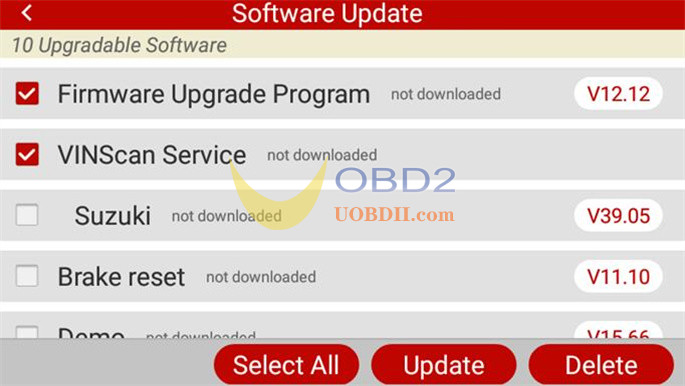
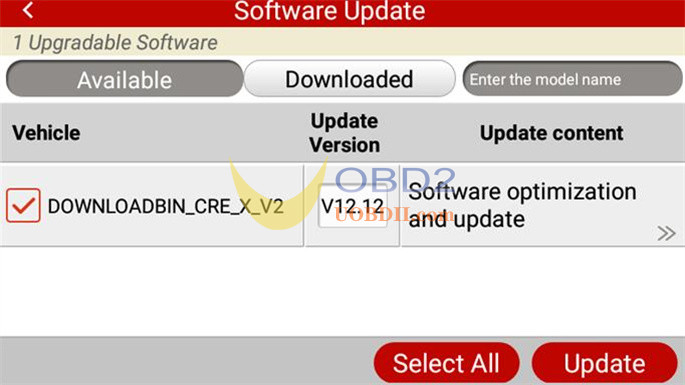
Go to the “Update” section, locate the required firmware file labeled “V12.12”, and select it for re‑download.
Tap “Update” to begin the download process.
Download options include:
- DOWNLOADBIN_CRP_12XIV2_V2 (V12.12)
- Firmware upgrade (V12.12)
- Firmware upgrade Program (V12.12)
- DOWNLOADBIN_CRE_X_V2 (V12.12)
Step 2: Re‑run the Firmware Fix Tool
Return to the main interface of the Launch diagnostic tool.
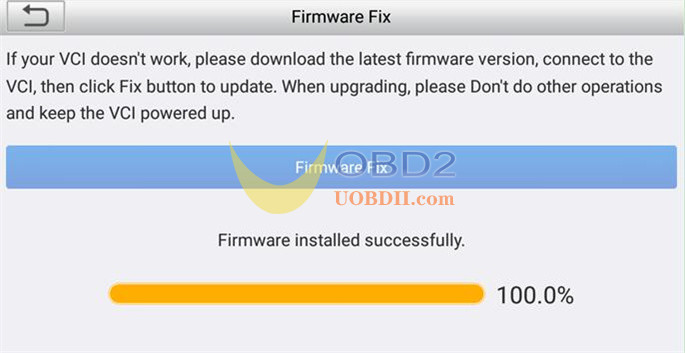
Tap “DATA” → navigate to “Firmware Fix”.
Run the “Firmware Fix” process once again.
Tech support:
Email: Sales@UOBDII.com
Whatsapp: +86-13995696053
