The J2534 function has been improved in CG FC200 V1.3.5.0, allowing FC200 to act as a replacement PCM host for use with PCMflash software on numerous vehicle modules.
What You’ll Need:
- CG FC200 hardware
- FC200 software (v1.3.5.0 or newer)
- PCM software (original or clone)
- PCM dongle and drivers
Note: CG does not provide PCM software, dongle, or drivers – these must be obtained separately.
Step-by-Step Operation Guide:
Step 1: Install FC200 Software
Download FC200 V1.3.5.0 (free)
Connect FC200 device to your computer using a USB cable
Launch FC200 software
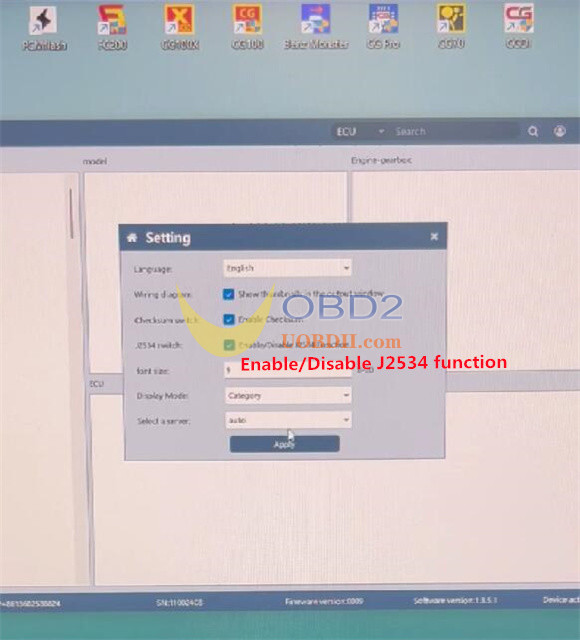
Go to Setting → Enable/Disable J2534 function
Click “Apply” to activate the J2534 function
Step 2: Connect Hardware
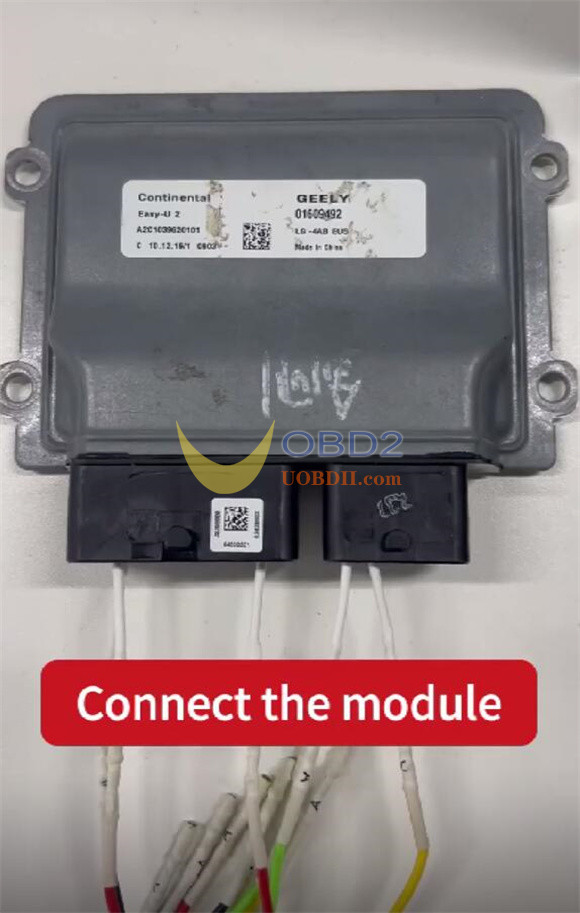
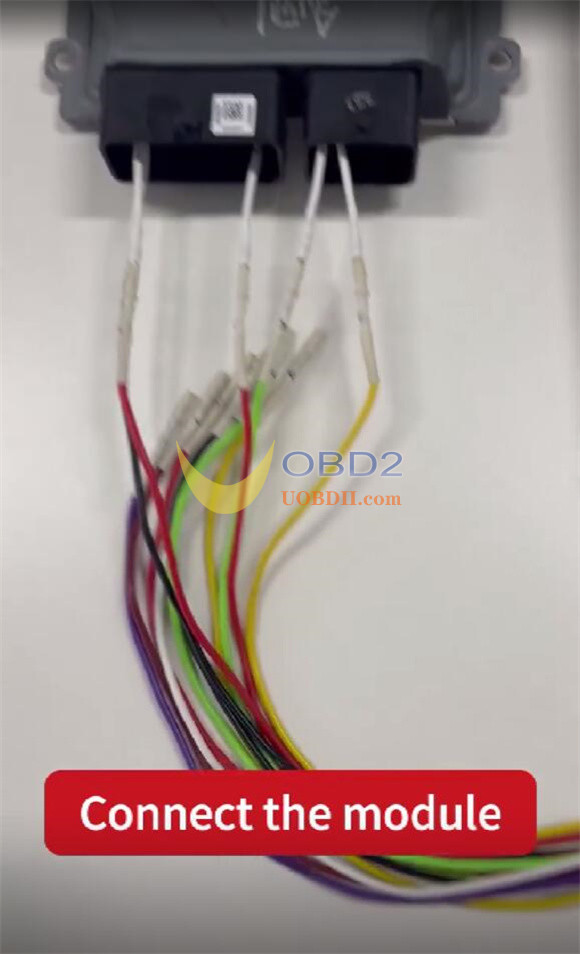
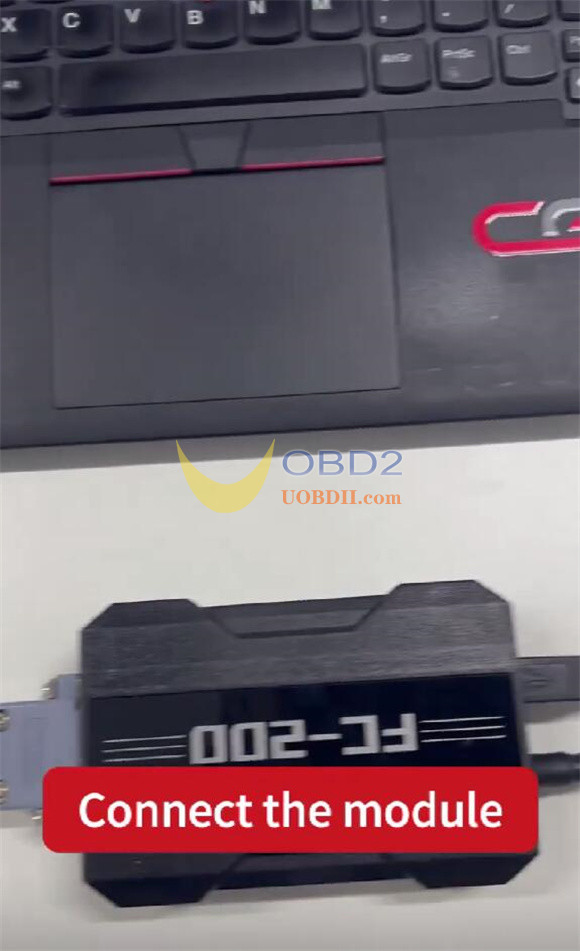
Using FC200 Adapter, properly connect CG FC200 ECU programmer to the target ECU
Apply power to FC200 unit
Insert the PCM dongle into an available USB port on your PC
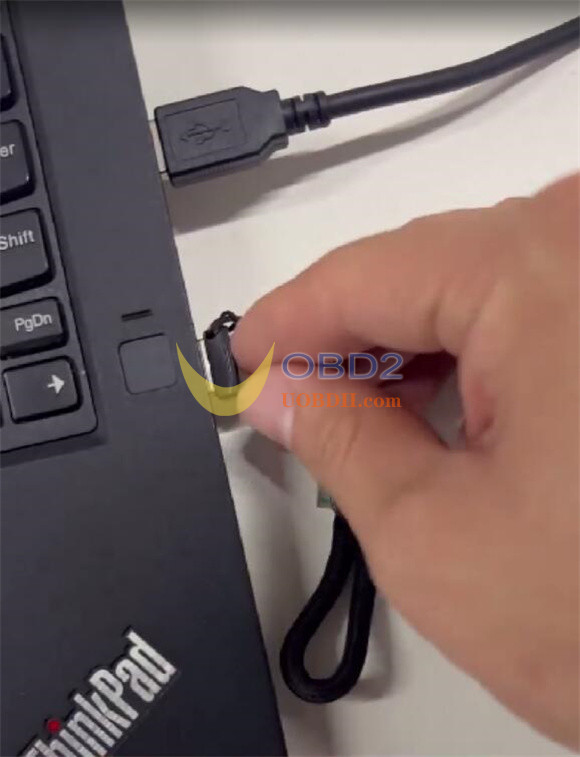
Step 3: Perform J2534 Function
Open PCMflash software
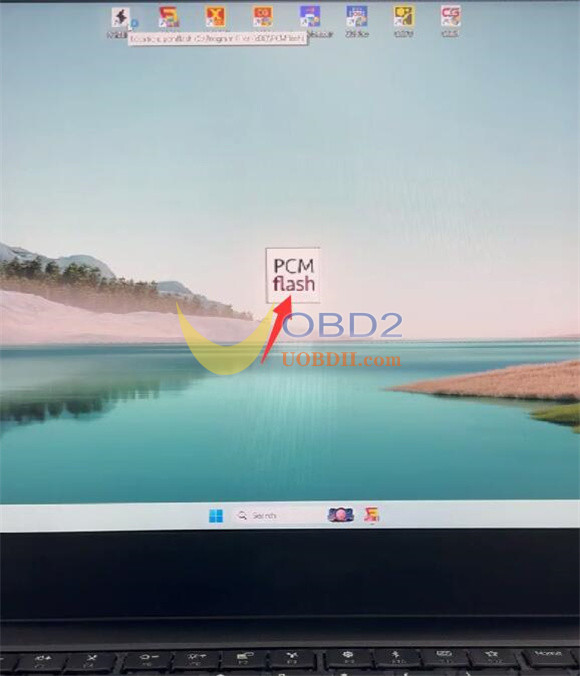
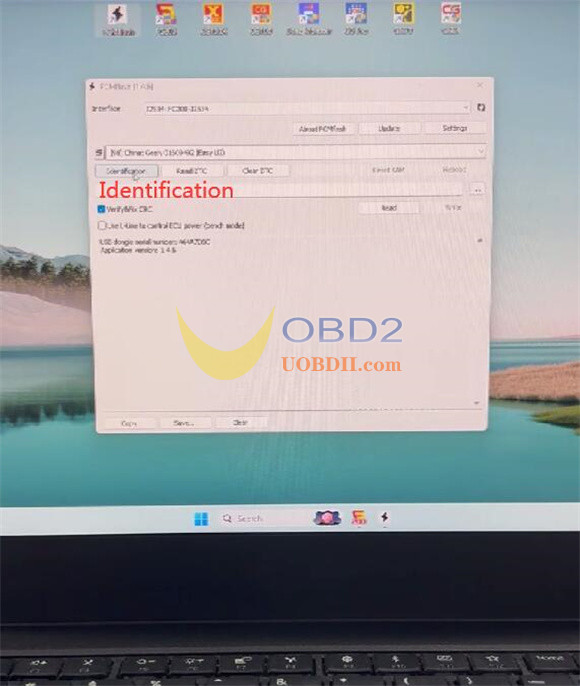
Select the J2534 connection type
Click “Identification” to retrieve ECU information
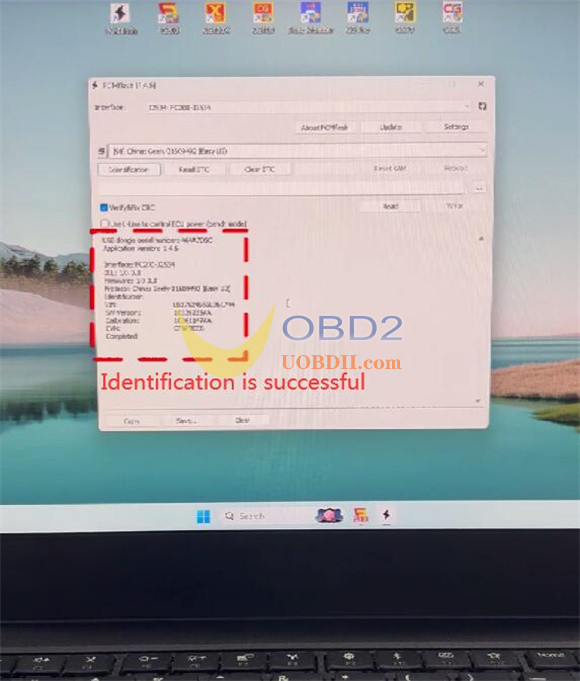
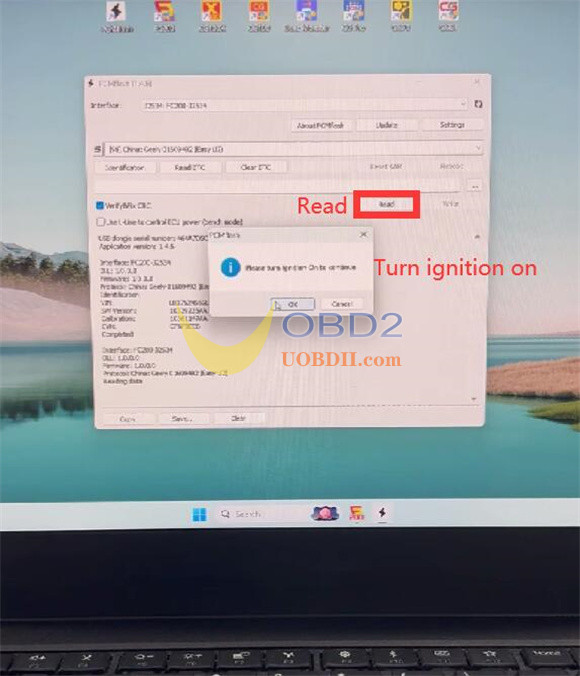
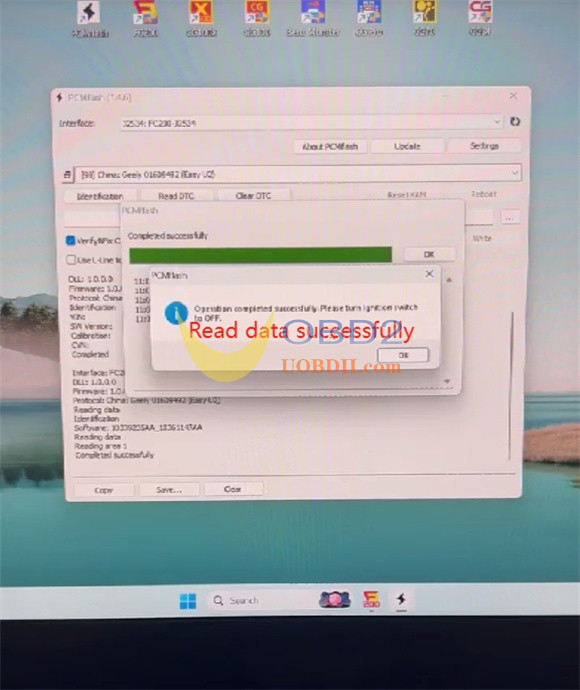
Click “Read” to start reading data
Turn the ignition on
Allow the reading process to complete
Note:
OBD data reading is supported, but this functionality is limited to vehicles that are equipped with an OBD port.
Learn more:
